
Configure Gmail for Nexiwave
You can use a gmail filter to forward Voicemail Emails to Nexiwave. This guide applies to email services provided by Google, such as gmail.com and googlemail.com. This will add Nexiwave Voicemail Transcription service to your gmail.com or googlemail.com account.
Overview
Two steps involved: Add as a gmail forwarding address; Create a gmail filter to forward your voicemail emails;
Steps
- Log into your gmail account.
- Add as a forwarding address.
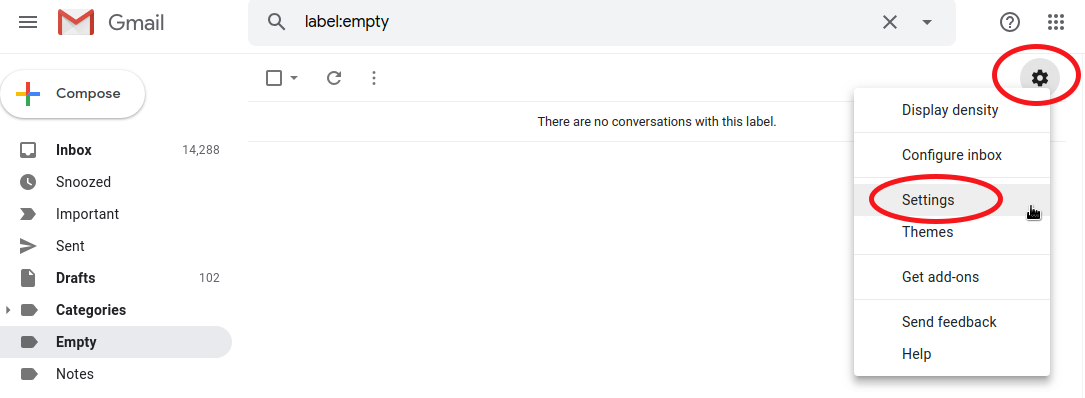
- Go to your gmail settings:
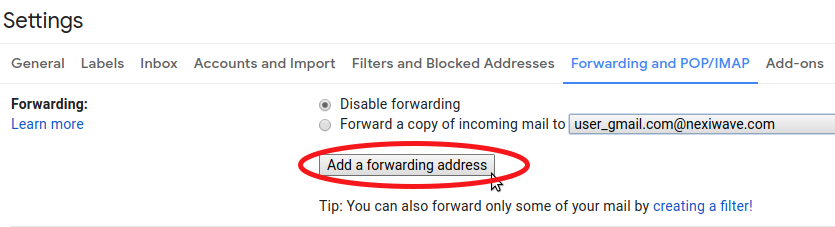
- Go to "Forwarding and POP/IMAP" and click "Add a forwarding address":
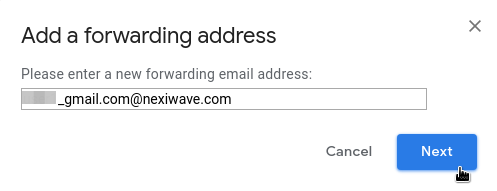
- Type in , click "Next" and follow through the next few screens:
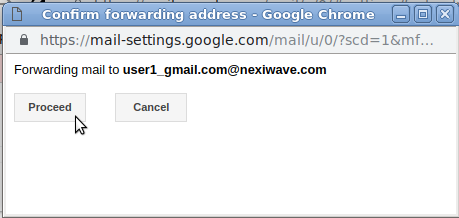
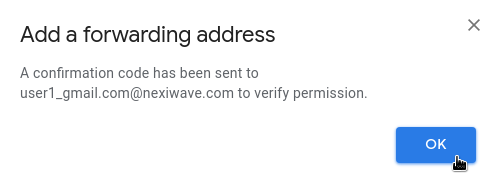
- Nexiwave will receive the forwarding confirmation code and send to you. Retrieve the confirmation code in your gmail inbox.
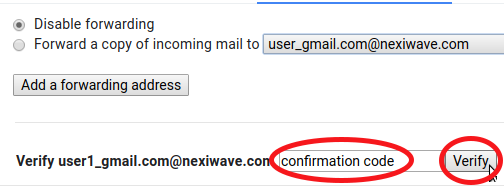
- Confirm the forwarding address with the confirmation code:
- Your Nexiwave custom email address will now appear in your forwarding address list:
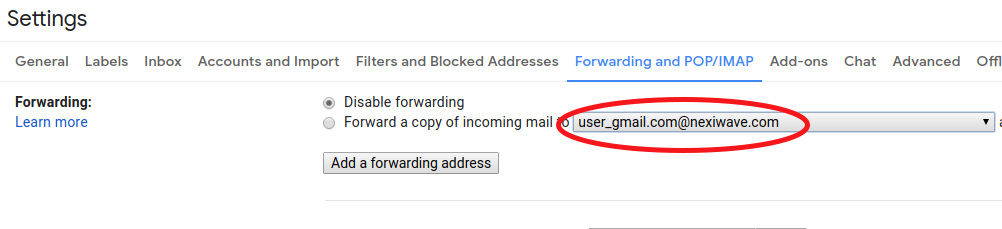
- Important: Make sure you don't have "Forward a copy of incoming mail to" selected. The actual forwarding is handled by the gmail filter that we will create in next step.
- Go to your gmail settings:
- Create the Gmail filter.
- Start by typing this query "from:(voicemail@my-phone-provider.com) has:attachment" in your gmail search box. Note: replace voicemail@my-phone-provider.com with the actual from address of your phone provider. Feel free to change the query. The idea is to find your voicemail emails.

- Click "Show search options":

- Double check the search conditions and click "Create filter".
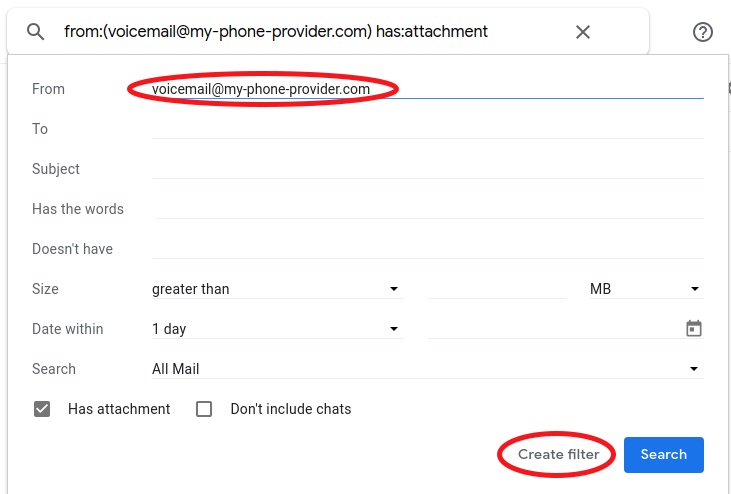
- Select in "Forward it to" action, and click "Create filter":
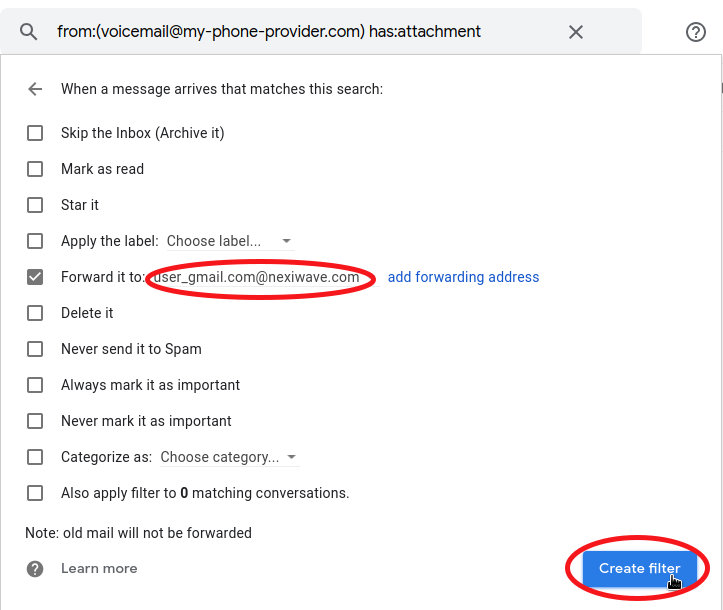
- Your filter is now created
- Start by typing this query "from:(voicemail@my-phone-provider.com) has:attachment" in your gmail search box. Note: replace voicemail@my-phone-provider.com with the actual from address of your phone provider. Feel free to change the query. The idea is to find your voicemail emails.
- Test: leave yourself a voicemail and see how Nexiwave saves you time!